Sharing Recorded Data
Every recording session saves one CSV file per sensor to the phone’s internal storage, in a folder named after the date and time of the session:
Internal storage / Documents / LEVEL_Sensor / 2026_07_17_12_13_50 /
    imu-chest-1847.csv
    imu-right knee-70a8.csv
(For the recording workflow itself - connecting sensors, profiles, placement labels - see Collecting data.)
There are two ways to get that data off the phone:
- Option A - share directly from the LEVEL Sensor app, right after you finish a recording. Fastest when you are still holding the phone at the end of a session.
- Option B - use the My Files app (pre-installed on Samsung phones) to find, zip, and send a session folder after the fact. Use this for older sessions or when sending several sessions at once.
Option A: Share right after recording
When you stop a recording, the Recording Saved screen lists the CSV file saved for each sensor and shows the folder they were saved to. Tap the Documents/LEVEL_Sensor/… link and the app zips the whole session folder and opens the share screen for you - pick how to send it (email, Drive, or any other app on the phone) and it goes out as a single zip attachment.
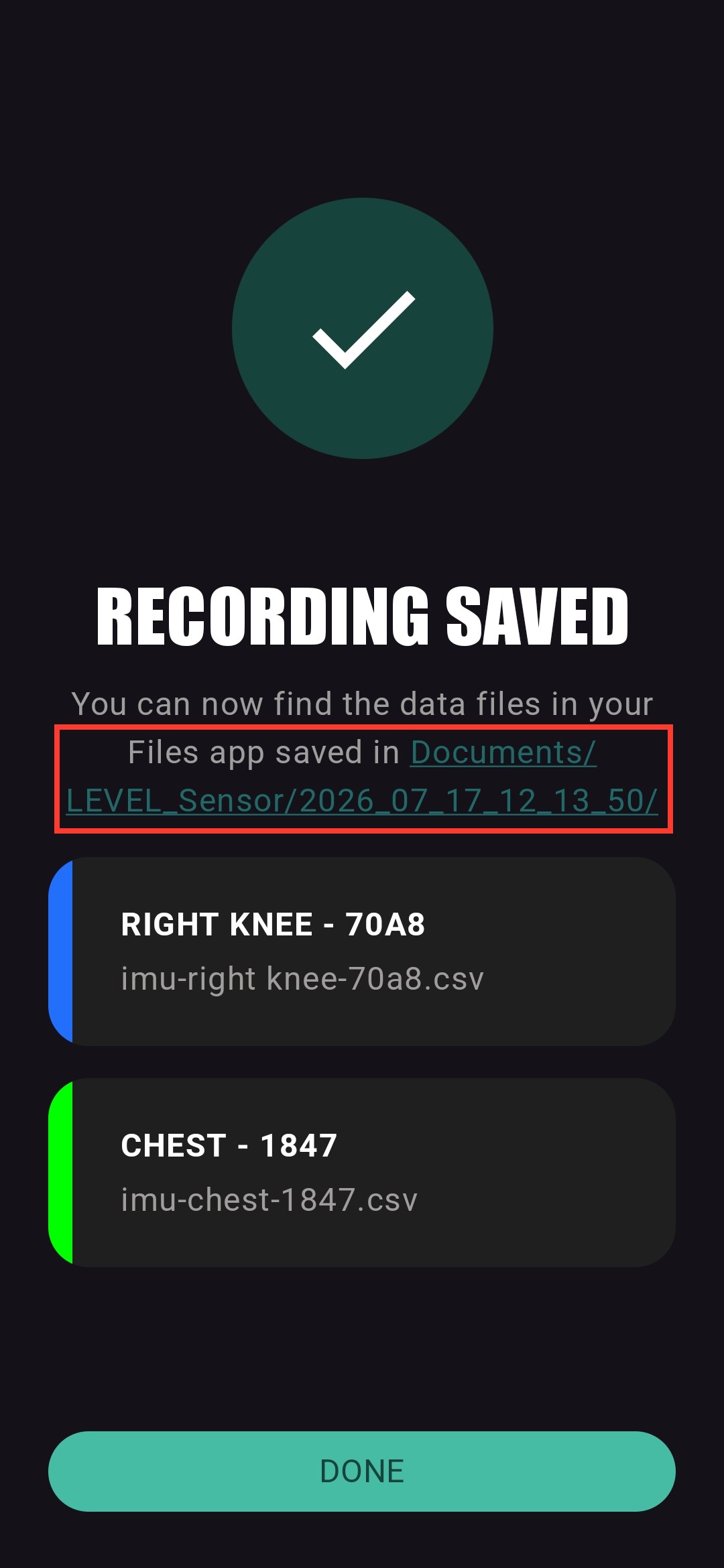
To send just one sensor’s data instead, tap that sensor’s card in the list - the share screen opens with only that CSV file attached.
Option B: Share later with My Files
Any past session can be found and sent with the My Files app that comes pre-installed on Samsung phones. (On other Android phones the equivalent app is usually called Files or Files by Google - the steps are the same, but the screens look different.)
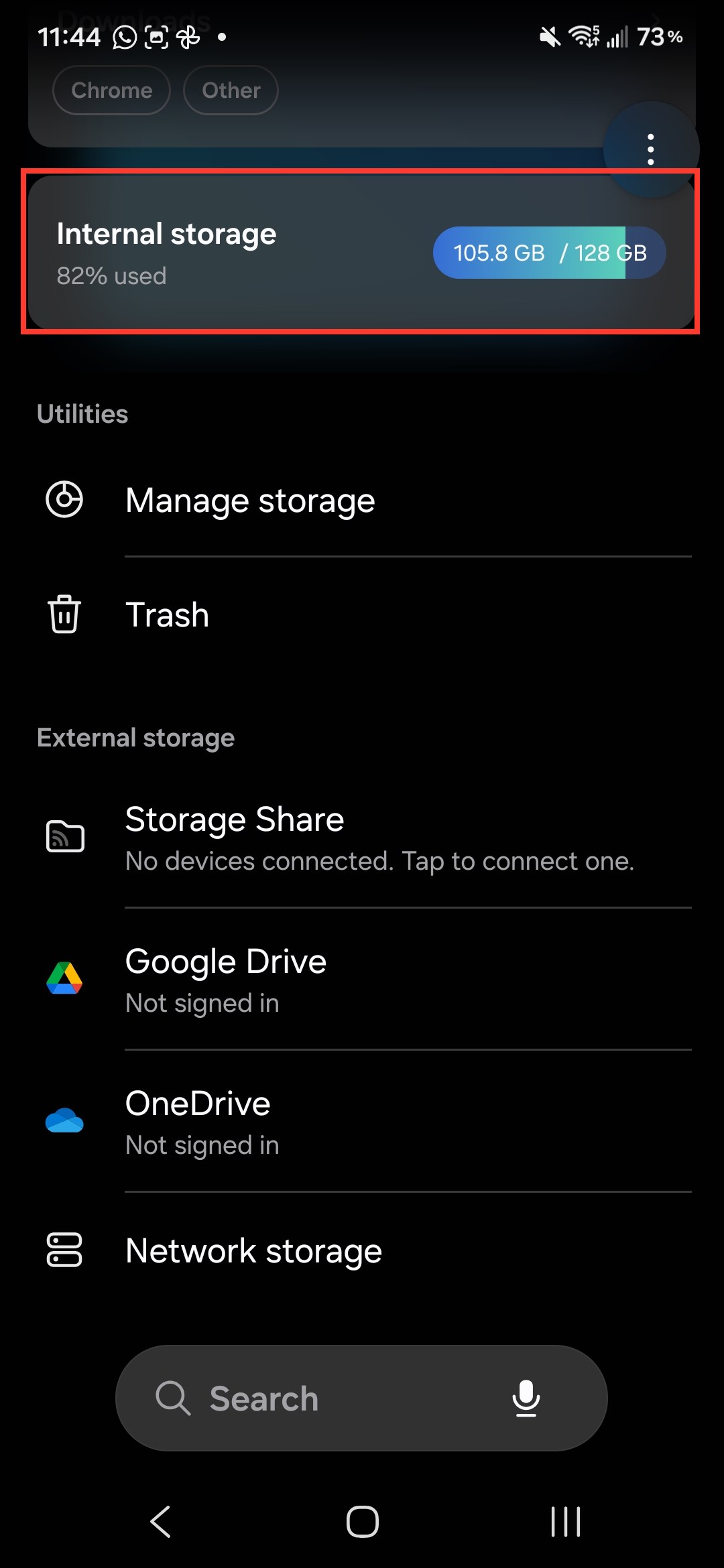
1. Open My Files and go to Internal storage
Open My Files (swipe up on the home screen and search for it if you don’t see the icon). On the home screen of My Files, scroll to and tap Internal storage.
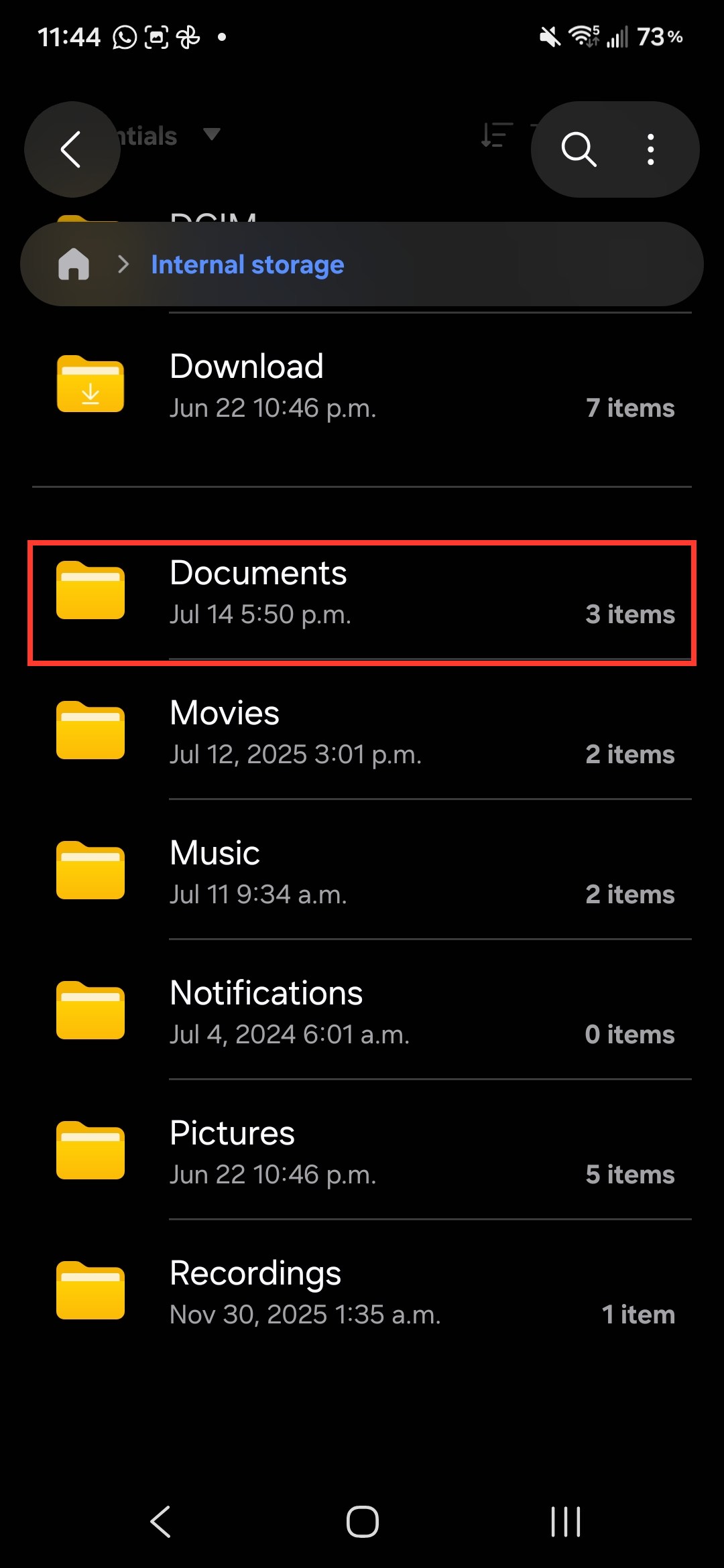
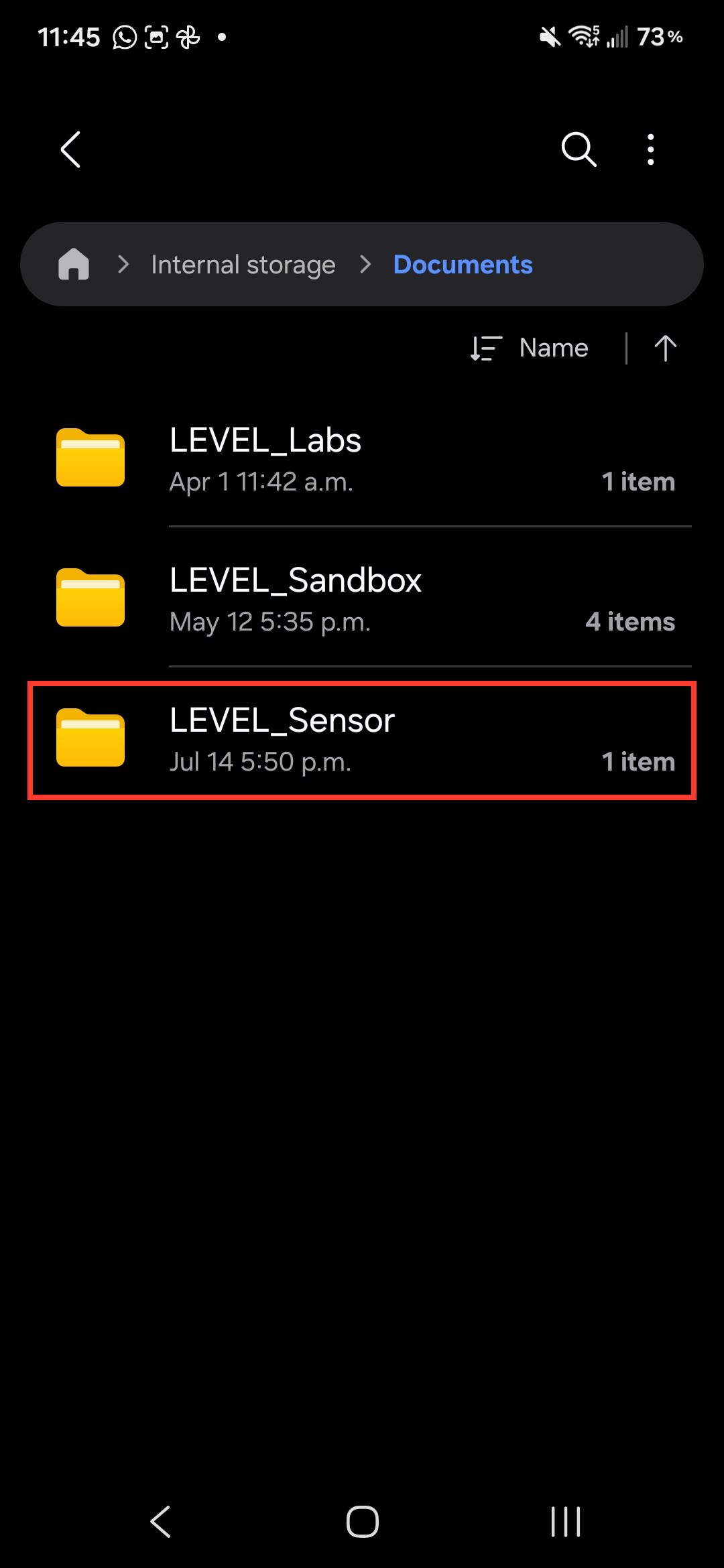
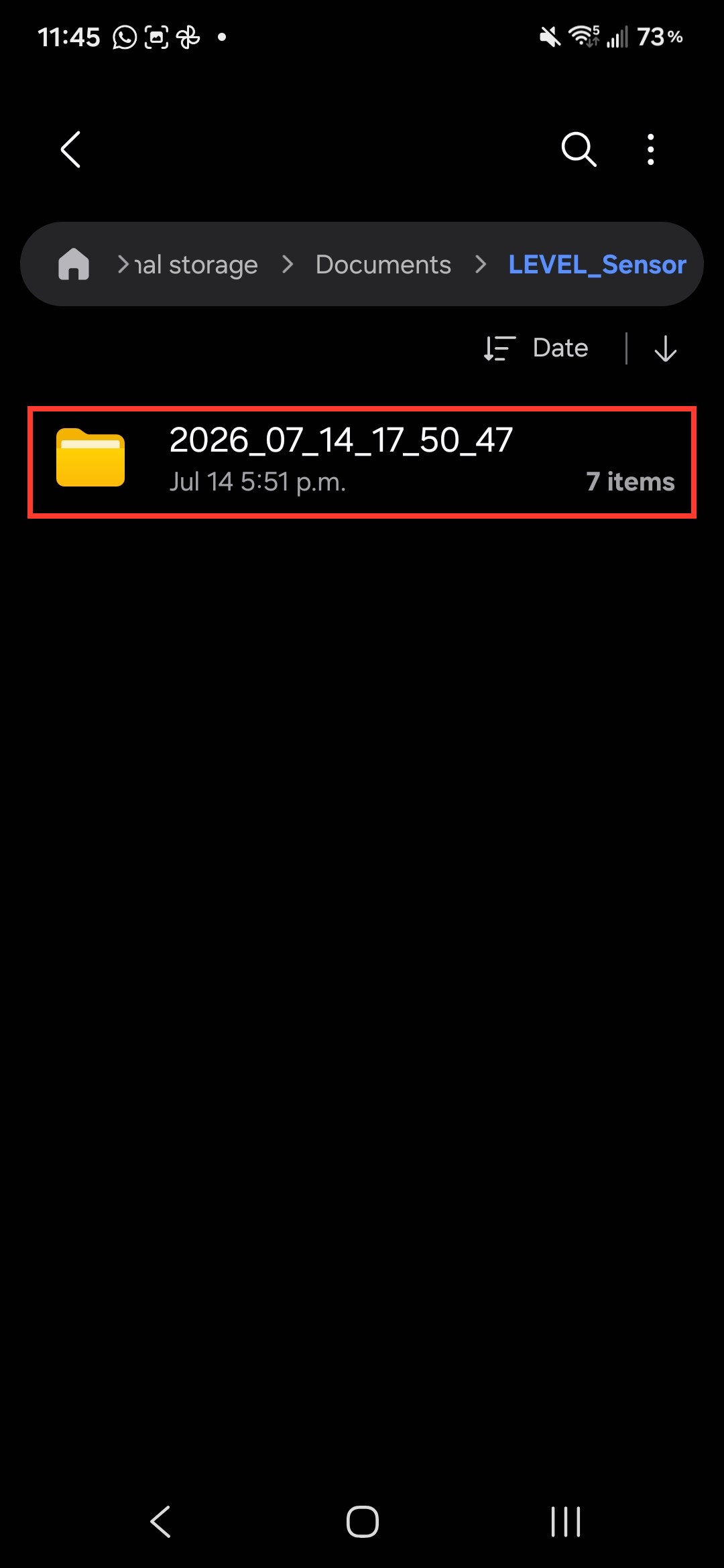
2. Navigate to Documents, then LEVEL_Sensor
Inside Internal storage, open the Documents folder, then open LEVEL_Sensor. Each recording session is a folder named by its date and time, for example 2026_07_14_17_50_47 for a session recorded on July 14 at 5:50 p.m.
3. Compress the session folder to a zip
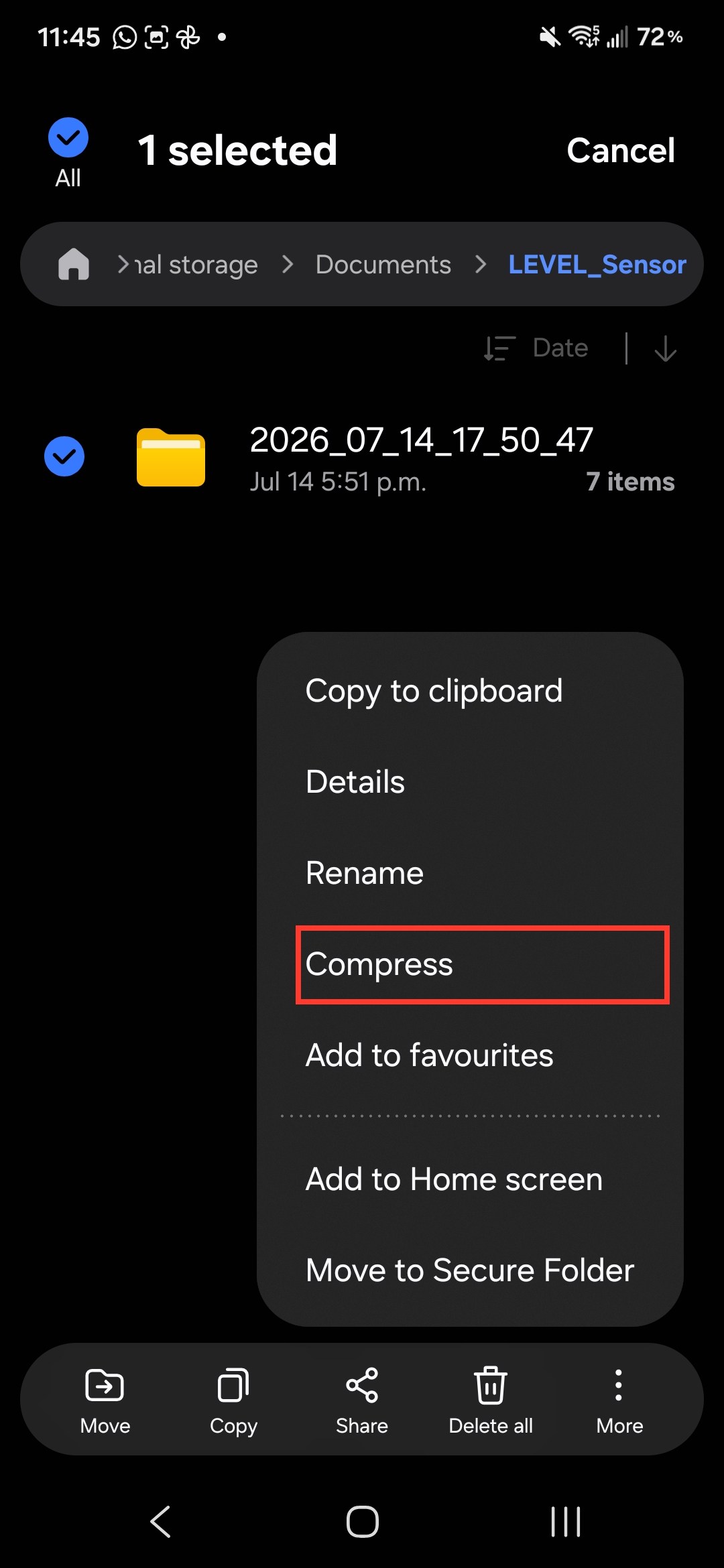
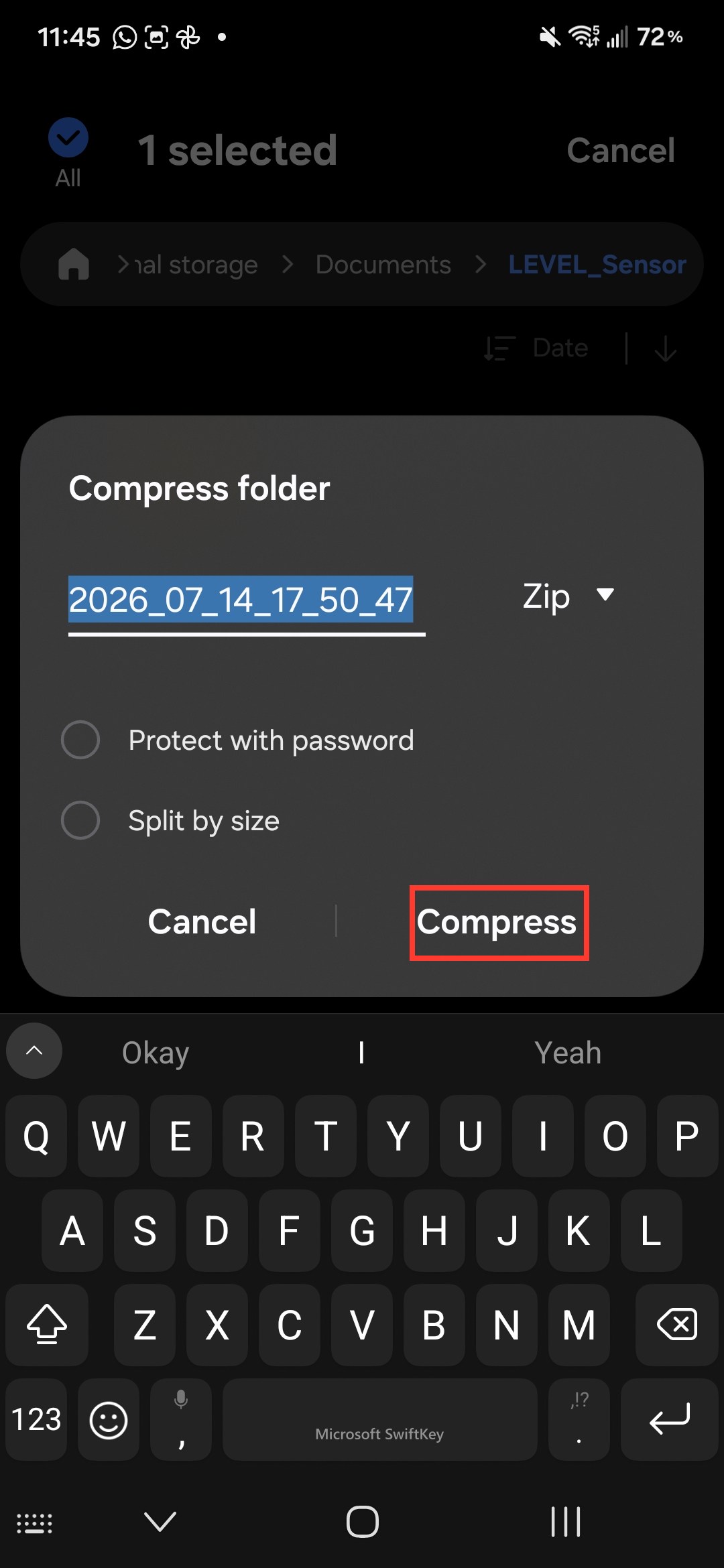
Long-press the session folder to select it, tap More (the three dots at the bottom right), and choose Compress. Keep the suggested name and the Zip format, then tap Compress. The zip file appears next to the folder.
Zipping keeps the files of a session together in one attachment and makes them smaller to send. Leave Protect with password off unless you have been asked to password-protect the data.
4. Share the zip
Long-press the new zip file to select it, then tap Share in the bottom bar and pick how to send it - email, Drive, or any other app on the phone.
Tips
- One folder per session. If you ran several trials, each STOP RECORDING created its own timestamped folder. Check the date and time in the folder name to pick the right one.
- Filenames carry the placement. Files are named
imu-<placement>-<sensor id>.csv(for exampleimu-chest-1847.csv), so labelling placements correctly during setup (see Collecting data) is what makes the data identifiable afterwards. - Sending many sessions: in My Files you can select several session folders at once before tapping Compress, which produces a single zip.