Collecting Data
This guide walks a full recording session in the LEVEL Sensor app, from connecting sensors to saving the data. To send the recorded files off the phone afterwards, see Sharing recorded data.
1. Prepare the sensors
Make sure the sensors are charged. Each sensor charges from any USB-C cable and charger - there is nothing special to plug in.
A sensor is either awake or asleep. It sleeps to save battery and wakes automatically when you pick it up or move it. If a sensor does not wake on movement, press the small reset button next to its USB-C port.
Once a sensor is awake you can connect to it. For what the light on the sensor means and other sensor basics, see About sensors.
2. Connect your sensors
Open the LEVEL Sensor app. It scans for nearby sensors automatically. Make sure your sensors are turned on and nearby - each one appears in the list with its ID and battery level.
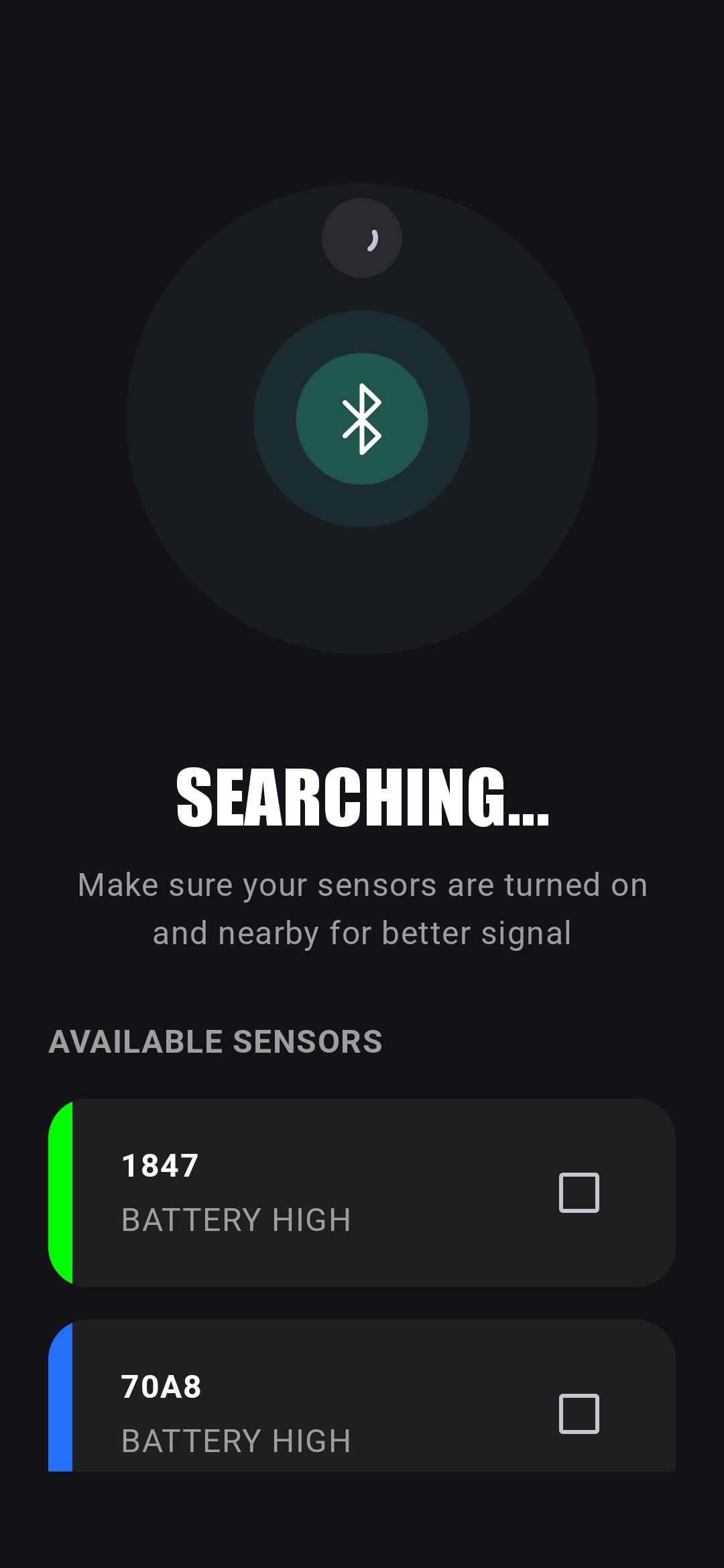
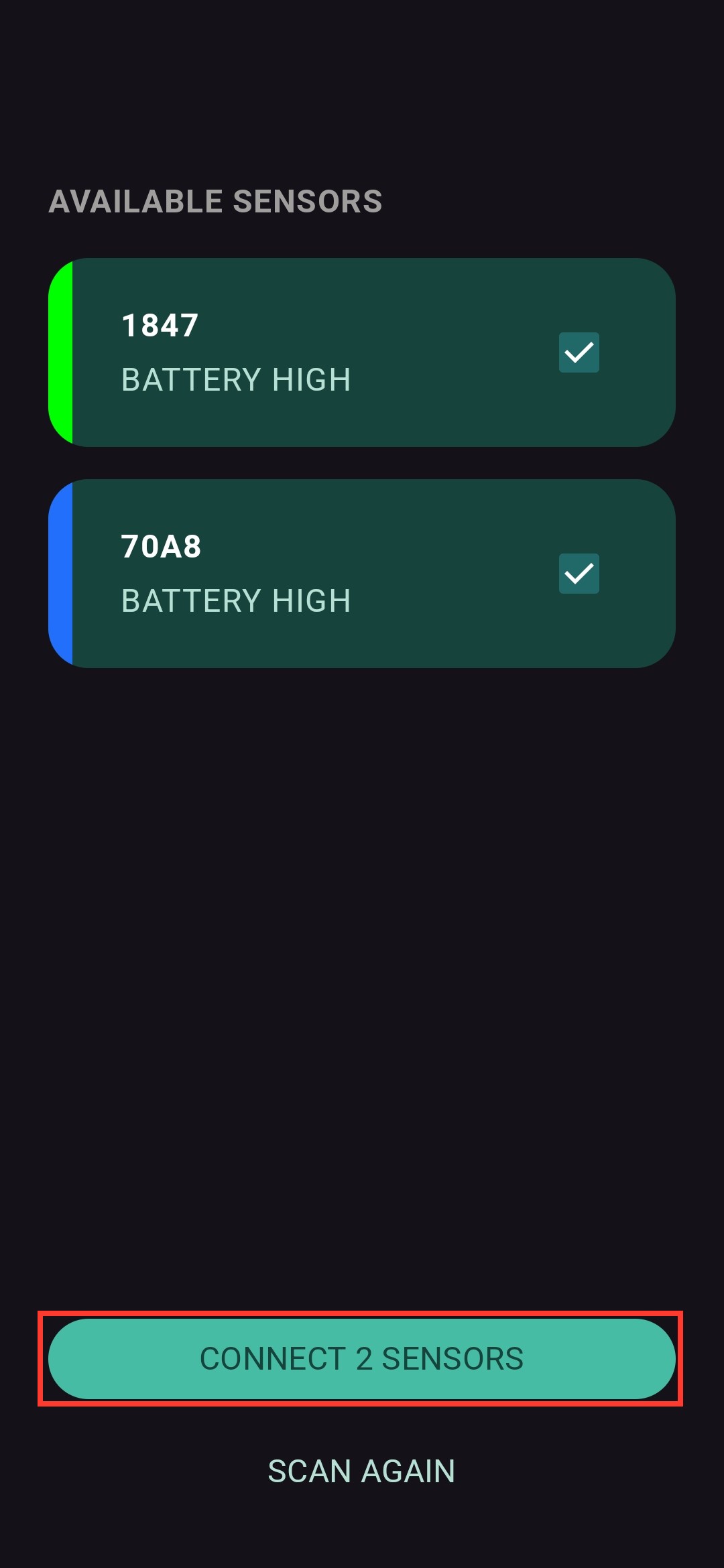
Tick the sensors you want to use, then tap CONNECT N SENSORS.
3. Create a profile (first time only)
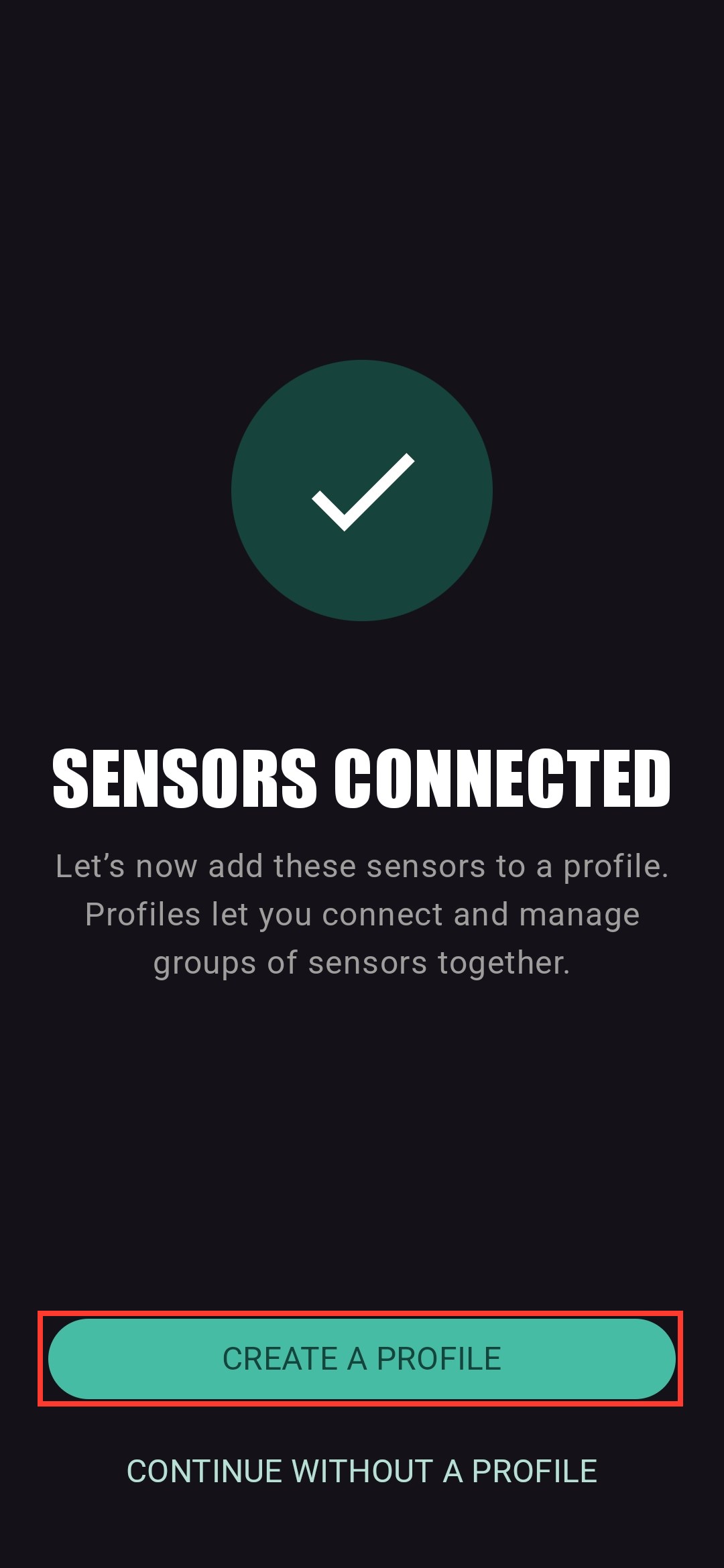
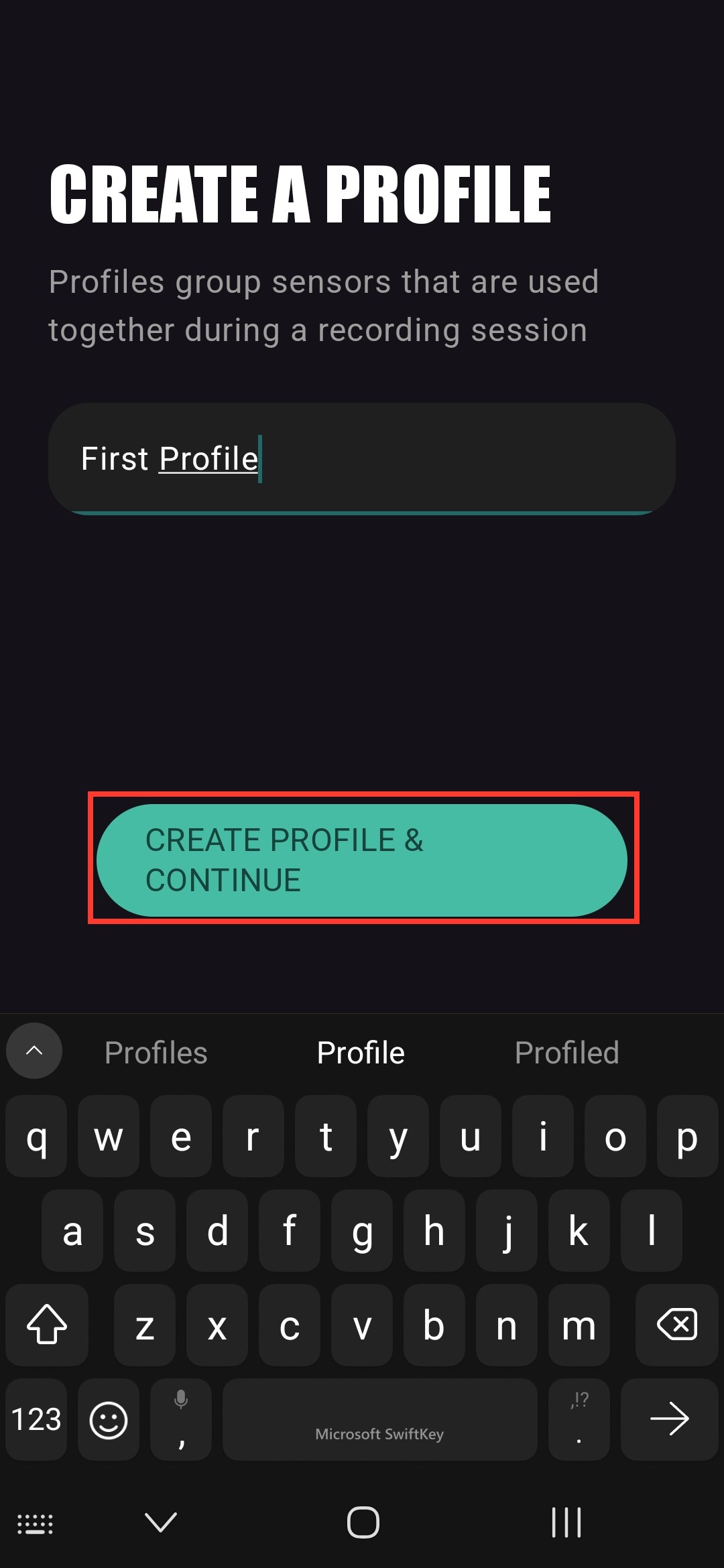
Once the sensors connect, the app asks you to add them to a profile. A profile groups the sensors you use together, so next session you can reconnect the whole set in one tap. Tap CREATE A PROFILE, give it a name, and tap CREATE PROFILE & CONTINUE.
4. Label each sensor’s placement
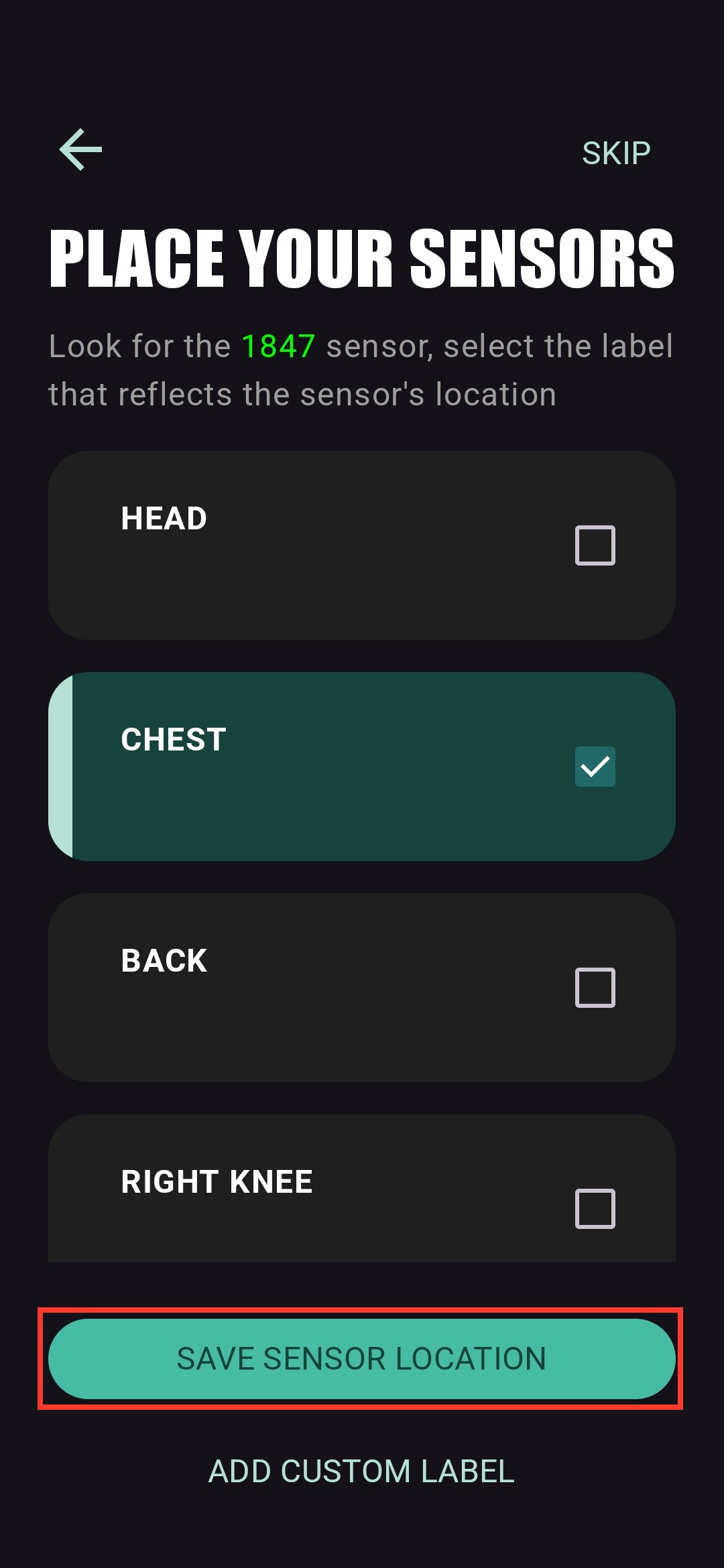
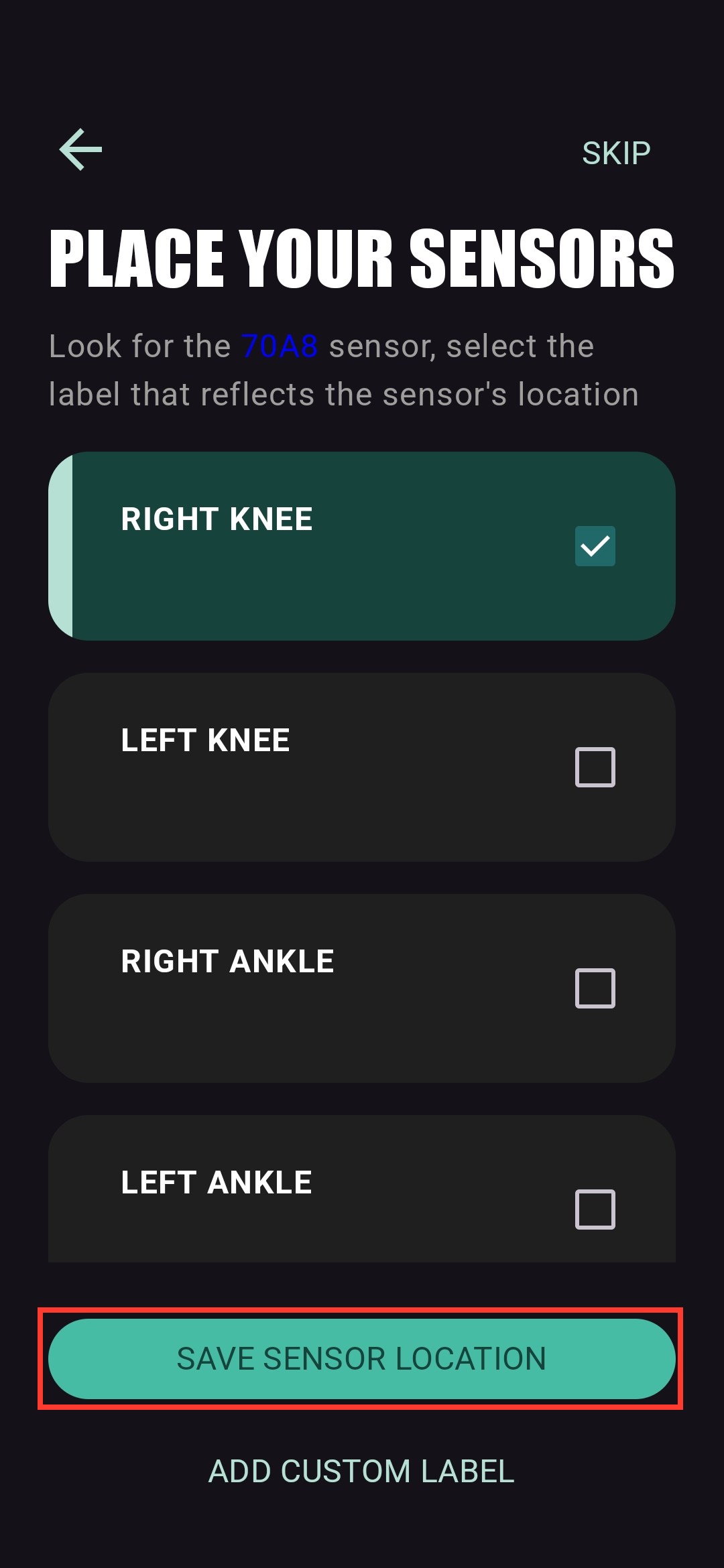
For each sensor, the app highlights the sensor ID and asks where on the body it is placed. Pick the label that matches (or ADD CUSTOM LABEL), then tap SAVE SENSOR LOCATION. The label ends up in the CSV filename, so accurate labels make the data much easier to work with later.
5. Record the session
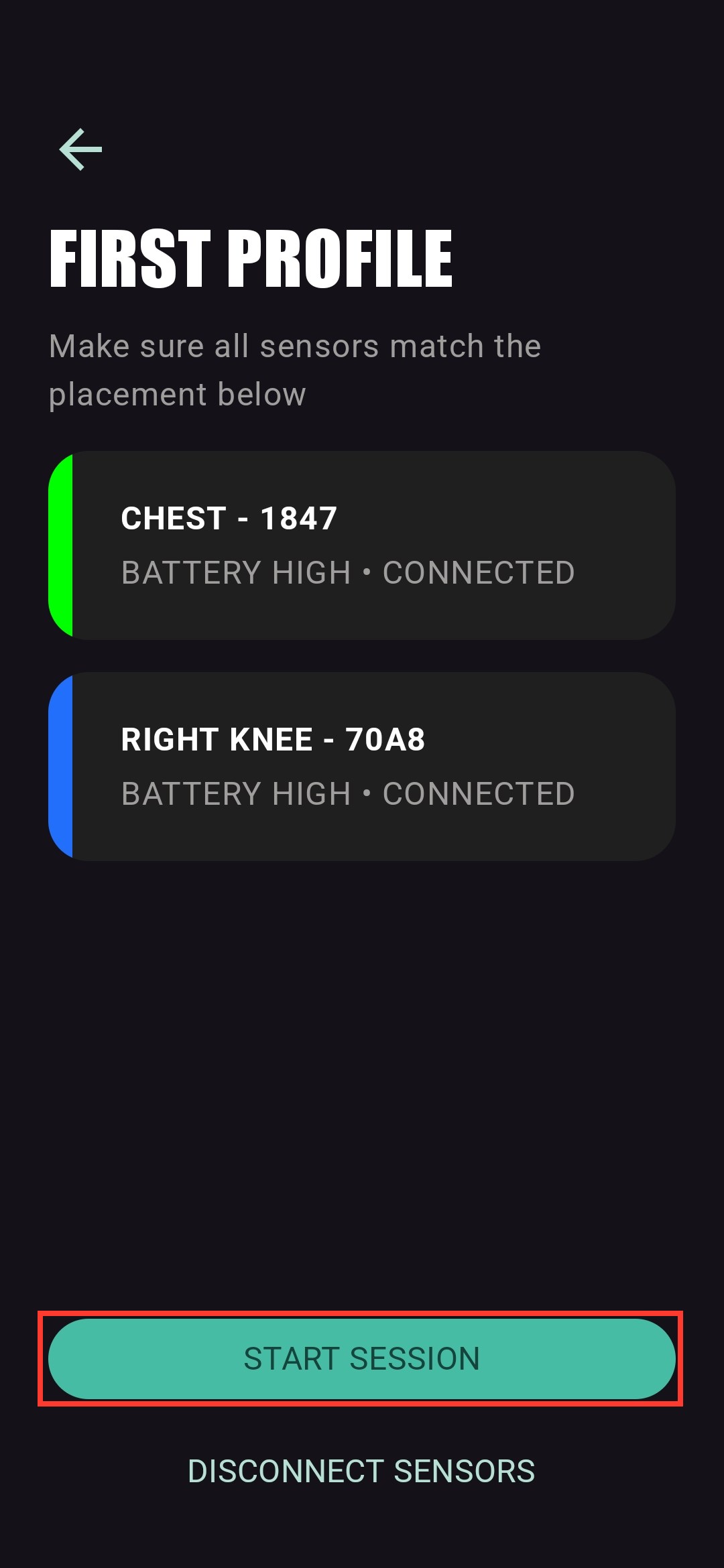
The profile screen shows every sensor with its placement, ID, battery, and connection status. When everything reads CONNECTED, tap START SESSION.
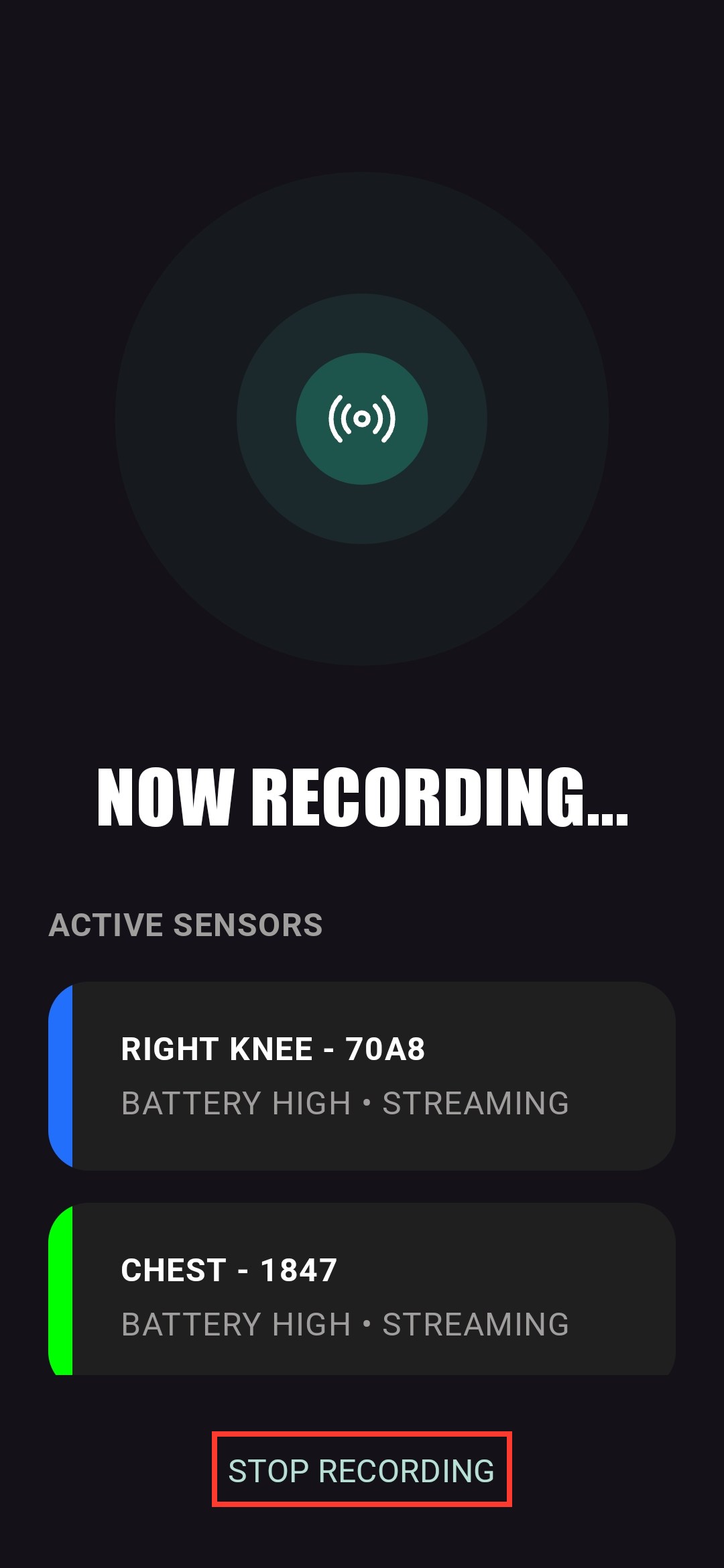
While recording, each sensor shows STREAMING. Run your movement or test, then tap STOP RECORDING.
6. Done - your data is saved
The Recording Saved screen confirms where the files went: one CSV per sensor, in a folder named after the date and time of the session under Documents/LEVEL_Sensor/. Each recording session creates its own folder.
From here you can share the data straight away - see Sharing recorded data.